> ## Documentation Index
> Fetch the complete documentation index at: https://voucherify-mk-create-loyalty-v2.mintlify.site/llms.txt
> Use this file to discover all available pages before exploring further.
# Manage categories
> Learn how to create and manage categories
This page describes changes to how you manage **Stacking rules** and **Categories** in Voucherify.
**The behavior of stacking rules doesn't change. You don't need to update your configuration. Stacking incentives work the same as before.**
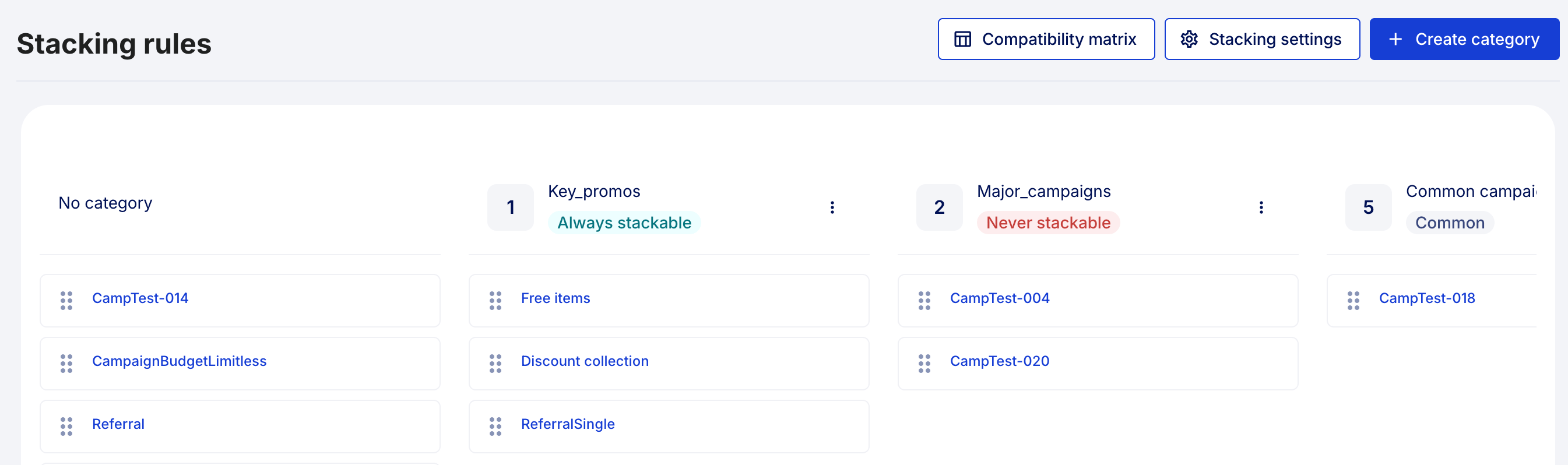
There is a **Stacking rules** section in the **Campaign hub**. In this section, you can:
* view and manage campaign categories
* assign campaigns to categories
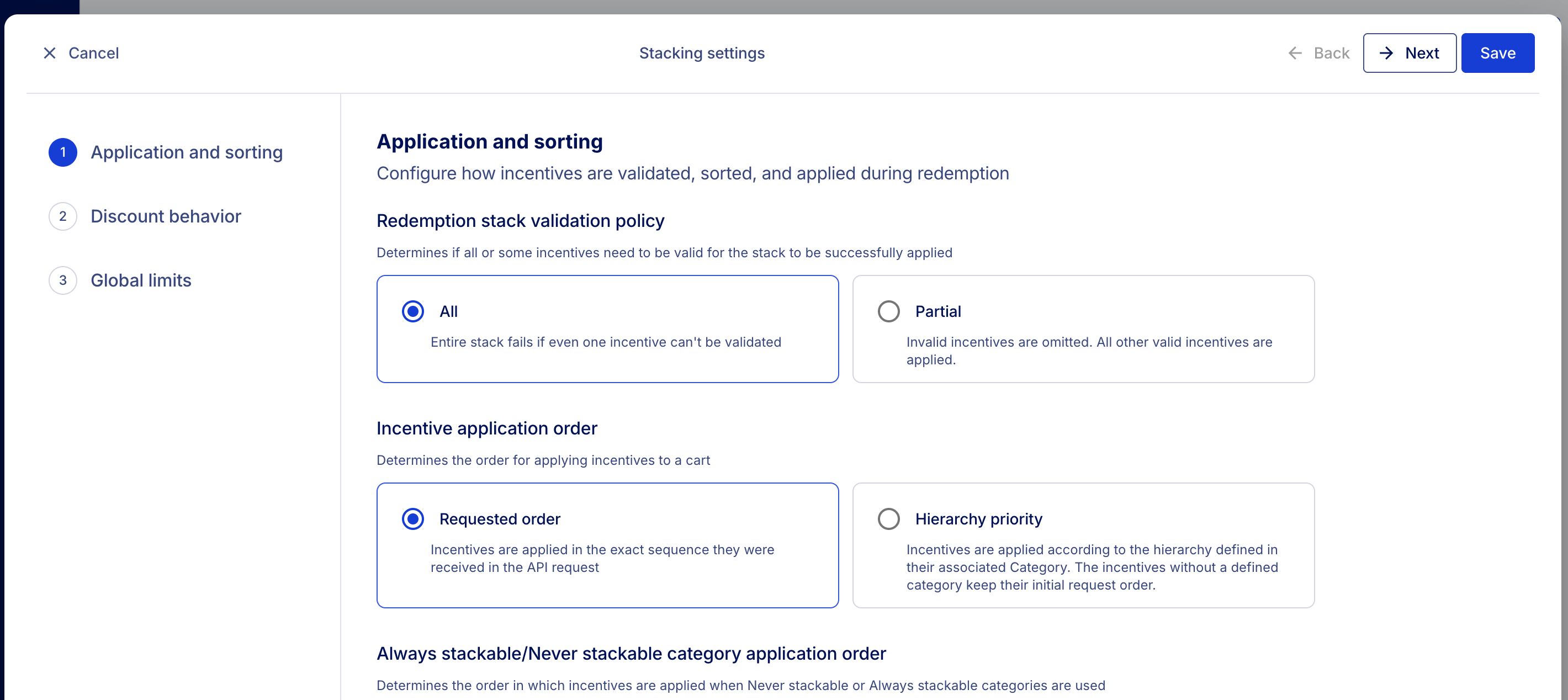
* set **Stacking settings**
 Also, some stacking rule settings have new names.
| Current setting name | New setting name |
| --------------------------------------------------------------------------------------------------------------------------------------------------------------- | ----------------------------------------------------------------------------------------------------------------------------------------------------------------------------------------------- |
| Discounts' application rules | Application and sorting |
| Application rule
Also, some stacking rule settings have new names.
| Current setting name | New setting name |
| --------------------------------------------------------------------------------------------------------------------------------------------------------------- | ----------------------------------------------------------------------------------------------------------------------------------------------------------------------------------------------- |
| Discounts' application rules | Application and sorting |
| Application rule
- Partial - inapplicable (not met criteria) discounts are omitted
- All provided promotions must be in a valid state | Redemption stack validation policy
- Partial
- All |
| Sorting rule
- Promotions applied in an order given in request
- Promotions' calculation order defined by category hierarchy | Incentive application order
- Requested order
- Hierarchy priority |
| Sorting rule for grouped redeemables
- Apply Joint categories last
- Apply Sorting rule to combined Joint and Exclusive categories | Always stackable/Never stackable category application order
- Apply Always stackable categories last
- Apply Sorting rule to combined Always stackable and Never stackable categories |
| Products application rule
- Always stack - allow multiple discounts to a product
- Apply only once - prevent multiple discounts to the same product | Product stack policy
- Multiple application
- Single application |
| Rollback Order Mode
- With order - The discounts will be reverted and order will be canceled
- Without order - The discounts and status will be kept | Redemption rollback policy
- Revert
- Keep |
| No Effect Rule
- Redeem anyway - even where there is no effect applied
- Skip - redeem only when there is an effect applied | No effect
- Force redemption
- Prevent redemption |
| Limit Settings for Stackable Discounts API | Global limits |
| Maximum count of redeemables in API request | Maximum number of incentives in a request |
| Maximum count of valid promotions to apply in a request | Maximum number of valid incentives to apply in a request |
| Maximum count of valid promotions per category to apply in a request | Maximum number of valid incentives per category to apply in a request |
| Maximum count of valid exclusive promotions to apply in a request | Maximum number of valid Never stackable incentives to apply in a request |
| Maximum count of valid exclusive promotions per category to apply in a request | Maximum number of valid Never stackable incentives per category to apply in a request |
| Campaigns Stacking Eligibility
- Never Stackable (Exclusive)
- Always Stackable (Joint) | Stacking eligibility (*in the Category editor*)
- Common
- Never stackable
- Always stackable |
| Discount Calculations by Category
- Based on Initial Amount
- Based on Discounted Amount | Discount calculation mode
- Based on discounted amount
- Based on initial amount |
Required permissions
Users with the **User** role can view **Stacking rules** and **Categories**, edit category name and hierarchy, as well as assign campaigns to categories.
However, only Admins and custom roles with **Access Project settings** and **Modify base Project Details** can modify stacking settings in **Categories** and **Stacking settings**.
Categories help you organize campaigns in the **Stacking rules** view. This way, you can mix and match your incentives, like discount coupons, cart promotions, and others, and set up rules to limit conflicting behavior.
You can create categories, assign campaigns to them, and configure how campaigns behave when incentive stacking applies in validation and redemption.
Stacking rules and categories
Some of the settings in categories are affected by stacking settings.
Read [Stacking rules](/orchestrate/stacking-rules) to learn more about particular settings.
## Create a category
You can create a category from the **Stacking rules** view by clicking **Create category**.
In **Name category**, enter a name for the category.
In **Hierarchy**, enter a number.
The hierarchy number helps define category priority when campaigns are applied together. A lower number means higher priority. For example, a category with hierarchy **1** is treated as more important than a category with hierarchy **2**.
The hierarchy number is displayed next to the category name in the **Stacking rules** view.
Categories are applied according to hierarchy only if **Hierarchy priority** is selected in **Incentive application order** in **Stacking settings**.
**Stacking eligibility** defines how campaigns assigned to this category behave when they are validated together in the same redemption.
This setting controls how campaigns from this category interact with campaigns from other categories.
Choose one option:
* **Common**: Campaigns follow the application order. They:
* Stack with other **Common** campaigns.
* Stack with **Always stackable** campaigns.
* Do not stack with **Never stackable** campaigns.
* **Never stackable**: Campaigns in this category block Common campaigns in the same redemption stack. They:
* Do not stack with **Common** campaigns.
* Stack with **Always stackable** campaigns.
* Stack with other **Never stackable** campaigns.
This option is typically used for exclusive campaigns.
**Never stackable** campaigns can be applied together only if the global limits in stacking settings allow it.
* **Always stackable**: Campaigns in this category always join the redemption stack if they are valid. They:
* Stack with **Common** campaigns.
* Stack with **Never stackable** campaigns.
* Stack with other **Always stackable** campaigns.
In **No effect**, choose how the system handles a campaign that has no calculated effect:
* **Default**: Uses the global **No effect** setting.
* **Prevent redemption**: The campaign is redeemed only if an effect was calculated.
* **Force redemption**: The campaign is redeemed even if it has no effect.
In **Discount calculations**, choose how discounts are calculated:
* **Default**: Uses the global discount calculation setting.
* **Initial**: Calculates the discount from the original order value.
* **Discounted**: Calculates the discount from the current order value after previous discounts are applied.
In **Stacking limit**, enter the maximum number of campaigns from this category that can be applied in one redemption.
The maximum value is controlled by the global setting **Maximum number of valid incentives to apply in a request** defined in **Stacking settings**.
The stacking limit can be set to the same number as the global setting or to any lower number. It cannot exceed the global setting.
The global maximum value is 30.
Check if the data is correct and **Save** to add the new category.
The new category is added to the **Stacking rules** view.
When creating a campaign, you can also create a category in the first step of campaign configuration. This is helpful when you need to quickly add a new category for a specific campaign.
However, you can provide there only its name and hierarchy.
## Assign campaigns to a category
Campaigns are shown in columns, including **No category** and category columns.
To assign a campaign:
1. Locate the campaign in the list.
2. Drag it into another category column.
3. Drop it to confirm the assignment.
The campaign is now assigned to the selected category.
## Edit or delete a category
Each category has a three-dot menu next to its name.
Use this menu to manage the category:
* **Edit**: Update the category settings.
* **Delete**: Remove the category.
## Compatibility guide
Open **Compatibility guide** in the **Stacking rules** view to check how categories interact.
The guide lists category pairs and shows if and how they stack together.
Use this view when you want to confirm how categories combine before assigning campaigns.